
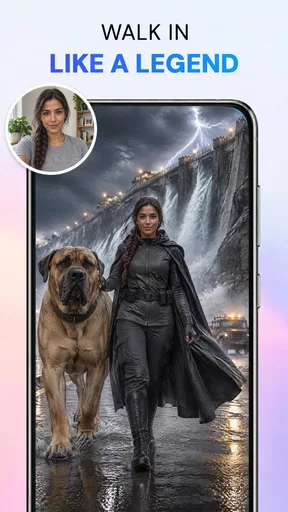
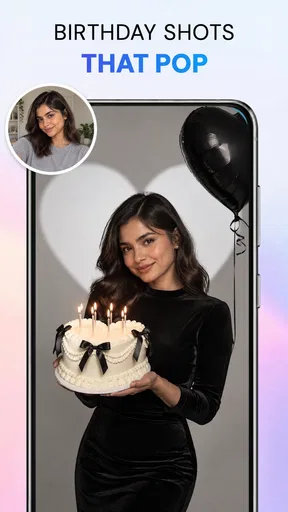
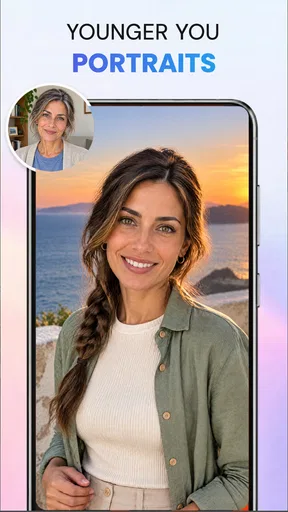
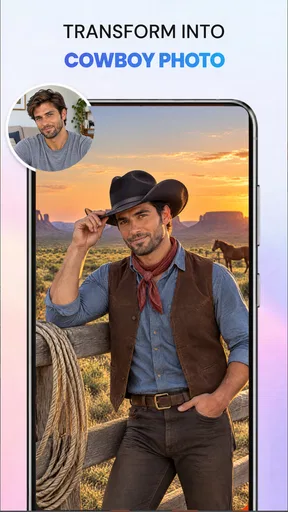
AI Photo Beauty Editor Studio review
 Analysis by GetAllApps
I judge an AI photo editor less by how many effects it offers than by whether it can fix one specific problem without making the whole picture look artificial. AI Photo Beauty Editor Studio is aimed at that practical kind of editing: its tools use written prompts to retouch portraits, remove backgrounds or unwanted objects, and improve an image. I’d consider it when I want a quick, focused edit on a phone, rather than a full desktop-style photography workspace.
It is a free photography app from ATQ - AI Lab, with optional in-app purchases priced from $3.99 to $39.99 per item. It has a 4.2 average from around 5,500 ratings, and more than one million installs. Those figures suggest it has found an audience, but they don’t tell me whether a particular edit will suit my taste; the result still depends on the photo, the prompt, and how subtle I keep the request.
Build a reliable starting workflow
I’d begin with a clean copy of the photo and one clear goal. If a portrait needs a small correction, I would ask for that correction alone instead of combining skin retouching, background changes, and general enhancement in one instruction. A narrow request makes it easier to judge whether the AI understood me and to spot unwanted changes.
For example, imagine I’ve taken a quick picture outside and want to use it as a profile image. I’d first decide whether the main issue is distracting scenery, a small object in the frame, or the portrait itself. If the background is the problem, I’d tackle that separately from any face retouching. If the face is fine but the overall image needs a lift, I’d avoid asking for a full beauty transformation. The point is to preserve what already works.
Prompt-based editing is useful because I can describe an outcome in ordinary language rather than hunt through a long set of sliders. But that convenience has a trade-off: a vague request leaves more room for the AI to interpret my intention. “Make this better” is less actionable than naming the change I want. I’d describe the target and keep the instruction restrained, especially when editing facial details.
A good habit is to assess the image at two scales. First, look at the whole composition: does the person still stand out, and does the background feel believable? Then inspect the area the edit touched. A portrait can look polished as a small thumbnail while showing awkward edges or overly smooth skin when enlarged. Checking both views helps me avoid accepting an edit just because its first impression is flattering.
I’d also keep the original untouched until I’m satisfied. That isn’t a special feature claim; it’s a sensible editing practice with any AI tool. When the result goes too far, returning to the source makes it easier to change the wording or choose a different tool, rather than trying to repair an already altered image.
Choose the tool by the problem, not by habit
The app’s core jobs overlap, but they are not interchangeable. Background removal changes what surrounds the subject; object removal tries to address an unwanted element in the scene; retouching alters the appearance of a person; enhancement is a broader attempt to improve the image. I’d pick the smallest intervention that solves the actual issue. A distracting sign behind someone does not automatically call for skin retouching, and a dim-looking photo does not necessarily need the background replaced.
This distinction matters because every extra AI operation creates another opportunity for the picture to drift away from the original. If an object is close to a person’s hair or clothing, removing it may affect the boundary around the subject. If I’m editing a face, I’d be cautious about pairing that with broad enhancement, since a global change can make it harder to tell what caused an unnatural look.
For a casual social post, a little cleanup may be enough. For a work headshot or a photo that needs to represent someone accurately, I’d keep edits conservative and compare the result against the original. The app is best treated as an assistant for targeted corrections, not as permission to reshape every detail.
Settings and choices worth checking
The most important “setting” in a prompt-driven editor is often the wording. I’d name one subject, one change, and one constraint: what should change, what should remain natural, and what should be left alone. For a portrait, that could mean asking for a modest cleanup while preserving recognizable features. For a background edit, I’d keep the request focused on the scenery rather than asking the app to restyle the entire image.
After each result, I’d check whether the app changed anything beyond the requested area. A background edit can affect hair edges; an object removal can leave a patch that looks inconsistent with nearby texture; a beauty adjustment can soften detail that gives a face its character. If the output misses the mark, I’d revise the prompt rather than stacking several broad requests on top of one another.
It’s also worth considering the source photo before blaming the tool. A sharply defined object against a simple background is a more straightforward editing task than a small object crossing patterned fabric or hair. Likewise, a portrait with clear lighting gives an enhancement request less ambiguity than one with heavy shadows. Choosing the cleanest available photo is a practical way to improve the odds of a convincing result.
The app is free to install, but its in-app purchases range from $3.99 to $39.99 per item. I’d check the purchase details in the app store before committing, and decide based on how often I expect to use the editing tools. Someone who only wants to fix an occasional photo should weigh that differently from someone who regularly prepares portraits and images for sharing. I wouldn’t assume a particular purchase unlocks a specific feature without checking what is shown at the time.
The app is rated for Everyone and requires Android 7.0 or later. That makes the stated minimum accessible to a broad range of Android users, although a compatible operating system does not guarantee that every device will feel equally comfortable for detailed editing. The current version is 1.3.3; if an option or screen differs on your phone, checking that you have the current app version is a reasonable first step.
Make repeat edits quicker without rushing
Experienced editing is less about finding a secret shortcut and more about repeating a reliable decision process. I’d sort my photos by the kind of fix they need, then work through one image at a time with a single goal in mind. That prevents me from applying the same beauty treatment to every portrait simply because it worked once on a different person or lighting setup.
For a set of pictures from the same outing, I’d use the first image to establish a restrained style, then treat each later photo as its own case. Even similar portraits can differ in expression, light, and background detail, so copying the same broad prompt blindly can produce uneven results. The useful repeatable habit is to keep the intention consistent while checking the actual output on each image.
I’d also decide what “finished” means before editing: perhaps the unwanted object is gone, the person remains recognizable, and the image still looks like a photograph I would have taken. Having a stopping point helps prevent endless prompt changes that gradually make the picture less natural. If the first clean edit already solves the problem, another pass may add little and introduce new artifacts.
When preparing an image for a particular use, I’d review it in that context. A profile picture may be viewed small, while a photo someone plans to crop or print deserves closer inspection. The app’s AI tools can help with the visible edit, but composition and final suitability are still my responsibility. I would not treat a convincing thumbnail as proof that every edge is clean.
Where AI editing reaches its limits
AI can make an edit look plausible without recovering the exact real-world detail that was hidden or removed. That is especially important when asking it to erase objects: the replacement area is an interpretation of the surrounding image, not a guarantee of what was originally behind the object. For a personal snapshot, that may be perfectly acceptable. For documentary, professional, or evidence-sensitive photos, I’d avoid presenting an AI-altered scene as an untouched record.
Background removal and object cleanup are also harder when the subject blends into what should disappear. Fine hair, transparent or similarly colored edges, busy patterns, and overlapping objects can make a tidy cutout difficult. If the subject’s outline is central to the photo, I’d inspect it closely and be prepared to use a more precise editor. A prompt is convenient, but it is not the same as direct control over every edge.
Retouching has a different limit: taste. An edit can be technically smooth and still look like too much. I’d be particularly conservative with skin and facial changes, because over-editing can erase texture or make a person look unlike themselves. If the goal is a natural portrait, the most successful result may be the one where viewers notice the person rather than the editing.
Compared with a conventional photo editor, this app’s prompt-led approach is appealing when I can describe a specific fix and want the software to handle the complicated work. Traditional editors are often the better choice when I need precise manual control, repeatable adjustments across a batch, or fine correction of a difficult edge. Compared with a basic one-tap beauty app, the ability to describe different kinds of edits is more flexible in principle, but that flexibility also asks me to evaluate the AI’s interpretation rather than simply accept a preset.
I would skip it if I mainly want a comprehensive manual editing suite, if I need dependable pixel-level control, or if I’m unwilling to review AI-generated changes carefully. It is also not the right tool for someone who wants every portrait edited in a uniform way without checking individual results. For those needs, a conventional editor or a workflow built around manual adjustments is a safer fit.
Who will get the most from it
I think AI Photo Beauty Editor Studio makes the most sense for Android users who often take portraits or everyday photos and want to request a particular cleanup in plain language. It can suit someone tidying a casual profile picture, removing an obvious distraction before sharing a travel photo, or making a small improvement without learning a complex editing interface. The key is being willing to inspect the result and accept that some requests may need a more specific prompt.
It is less compelling for photographers who already rely on detailed manual controls, people who need consistent batch processing, or anyone whose work depends on preserving an exact, unaltered scene. Those users may find the AI’s convenience does not compensate for the extra checking and reduced control. If your edits are rare, the free starting point may be enough to try the workflow, but I’d review any paid item carefully before spending.
Overall, I’d recommend it as a focused AI photo helper, not a replacement for every photography app. Its strongest approach is a disciplined one: start with a clean image, ask for one modest change, inspect the touched area and the full composition, and stop when the photo looks believable. That routine makes the app more useful than a stream of broad beauty prompts, and it keeps the final image feeling like yours.
Pros and cons
Pros
- Quickly applies beauty adjustments to portraits
- Offers an easy-to-use editing interface
- Useful for polishing selfies before sharing
- AI tools can simplify common retouching tasks
- Provides creative options for customizing photos
Cons
- AI edits may look unnatural on some faces
- Results can vary with image quality
- Some features may require in-app purchases
- Edited photos may lose fine details
- Privacy terms are worth checking before uploading images


